Organizing into Folders
Create folders to keep your preset collection organized.
Why Organize with Folders?
As you create more presets, your library can quickly become overwhelming. Folders help you group related presets together, making it easy to find the right preset for any situation. Whether you organize by style, project, client, or use case, folders keep your workflow efficient.
Creating Folders
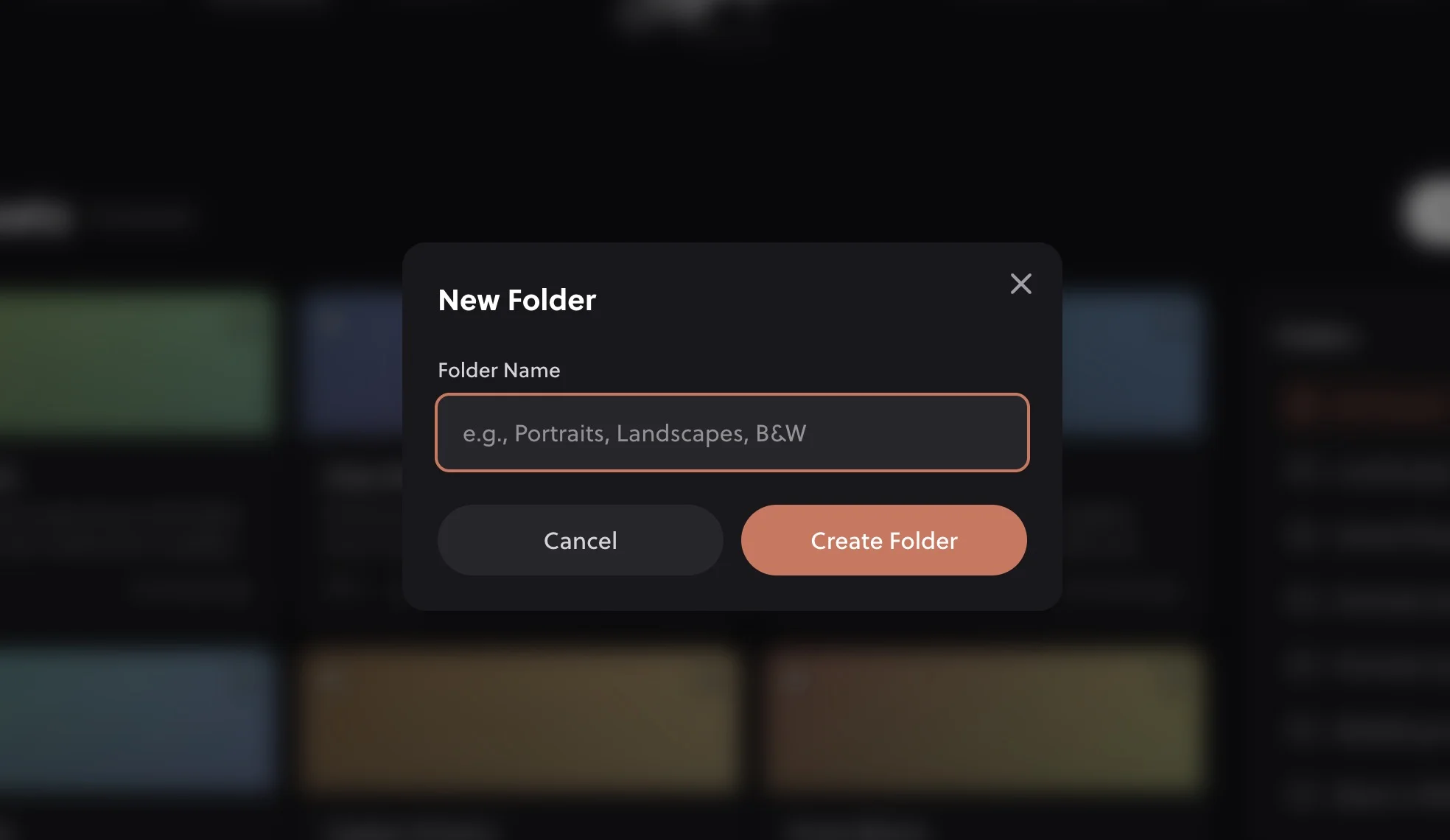
- Look for the Folders box and click the + icon next to it (you'll find this on the Dashboard or My Presets page)
- Enter a name for your folder
- Click Create Folder
Moving Presets to Folders
There are several ways to add presets to folders:
From the Preset Details Page
- Click on a preset to open its details
- Click Edit Preset in the Actions box in the sidebar
- Select a different folder from the dropdown
- Click Save Changes
Drag and Drop
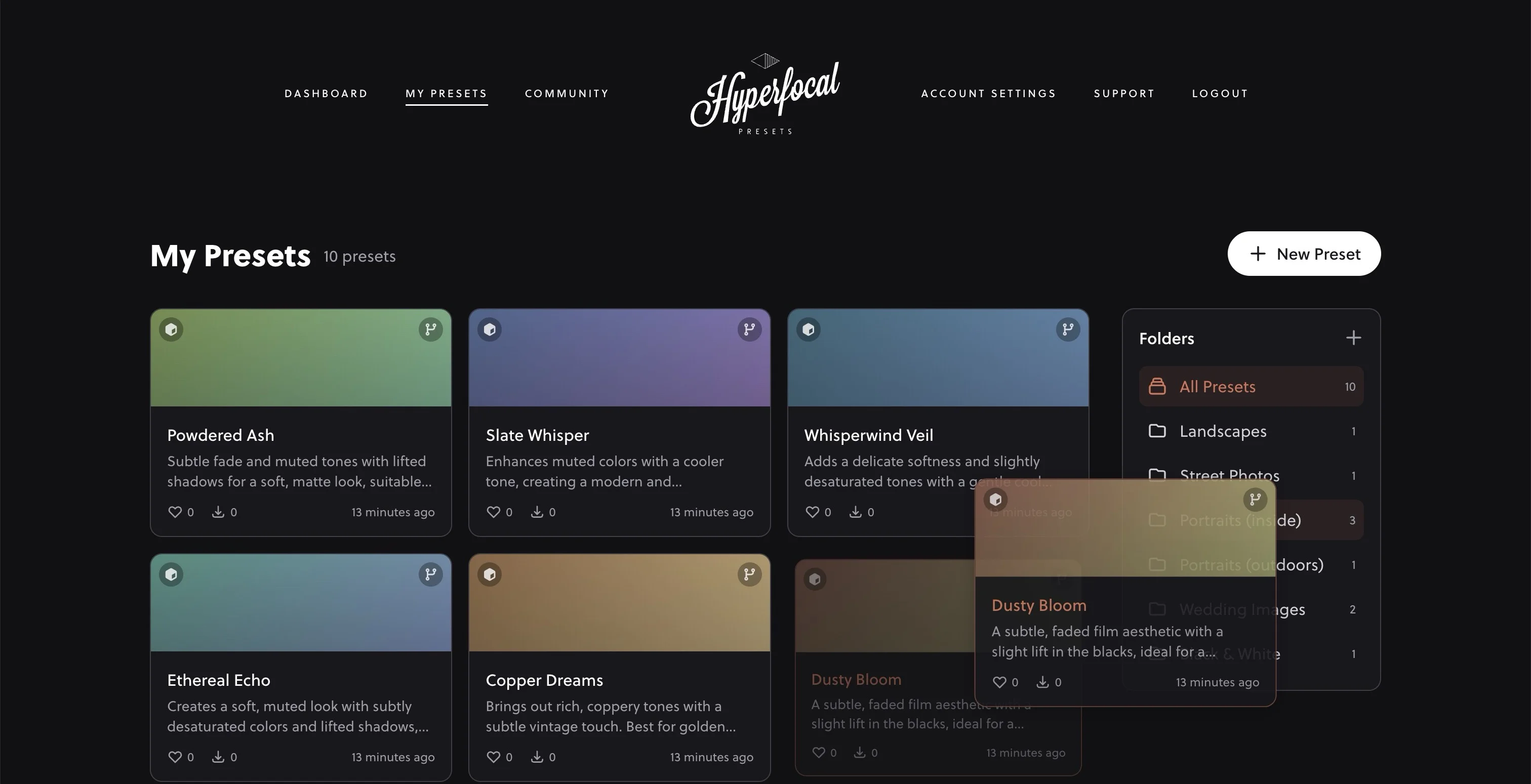
Drag a preset card and drop it onto a folder in the sidebar to move it instantly.
Folder Organization Strategies
Here are some popular ways photographers organize their presets:
By Style
- Warm & Golden
- Cool & Moody
- Film Looks
- Black & White
- Clean & Bright
By Use Case
- Portraits
- Landscapes
- Street Photography
- Product Shots
- Events & Weddings
By Project/Client
- Smith Wedding 2024
- Brand X Campaign
- Personal Projects
- Client A
- Client B
By Lighting
- Golden Hour
- Midday Sun
- Overcast
- Indoor/Artificial
- Night/Low Light
Renaming Folders
- Click on a folder in the sidebar to open it
- Click the Actions dropdown menu
- Select Edit
- Enter the new name and save
Deleting Folders
- Click on a folder in the sidebar to open it
- Click the Actions dropdown menu
- Select Delete
Presets Are Preserved
When you delete a folder, the presets inside are not deleted; they simply become uncategorized. You won't lose any presets by deleting a folder.
Downloading Entire Folders
Need all the presets from a folder? Click the download button on any folder to download all presets inside as a single ZIP file. This is great for backing up your work or sharing a collection with others.
Folders in Lightroom
When you download presets from Hyperfocal, they include metadata that creates a "Hyperfocal" preset group in Lightroom automatically. If you want to further organize within Lightroom, you can create subgroups there as well. See our Lightroom Classic installation guide for details.
Related Guides
- Managing Your Presets: Other ways to manage your library
- Installing in Lightroom Classic: Preset organization in Lightroom
- Remixing & Variations: Build preset collections
- Sharing Your Presets: Share folders with the community