Install in Lightroom Classic
Step-by-step guide to importing XMP presets into Adobe Lightroom Classic.
About Lightroom Classic
Lightroom Classic is Adobe's professional desktop photo editing application with powerful preset management capabilities. It's the most popular choice among professional photographers and offers the most complete preset experience.
Import via the Presets Panel
This is the easiest way to import presets in Lightroom Classic:
- Open Lightroom Classic and switch to the Develop module (press
D) - In the left panel, find the Presets panel
- Click the + icon next to "Presets"
- Select "Import Presets..."
- Navigate to your downloaded XMP file and select it
- Click Import
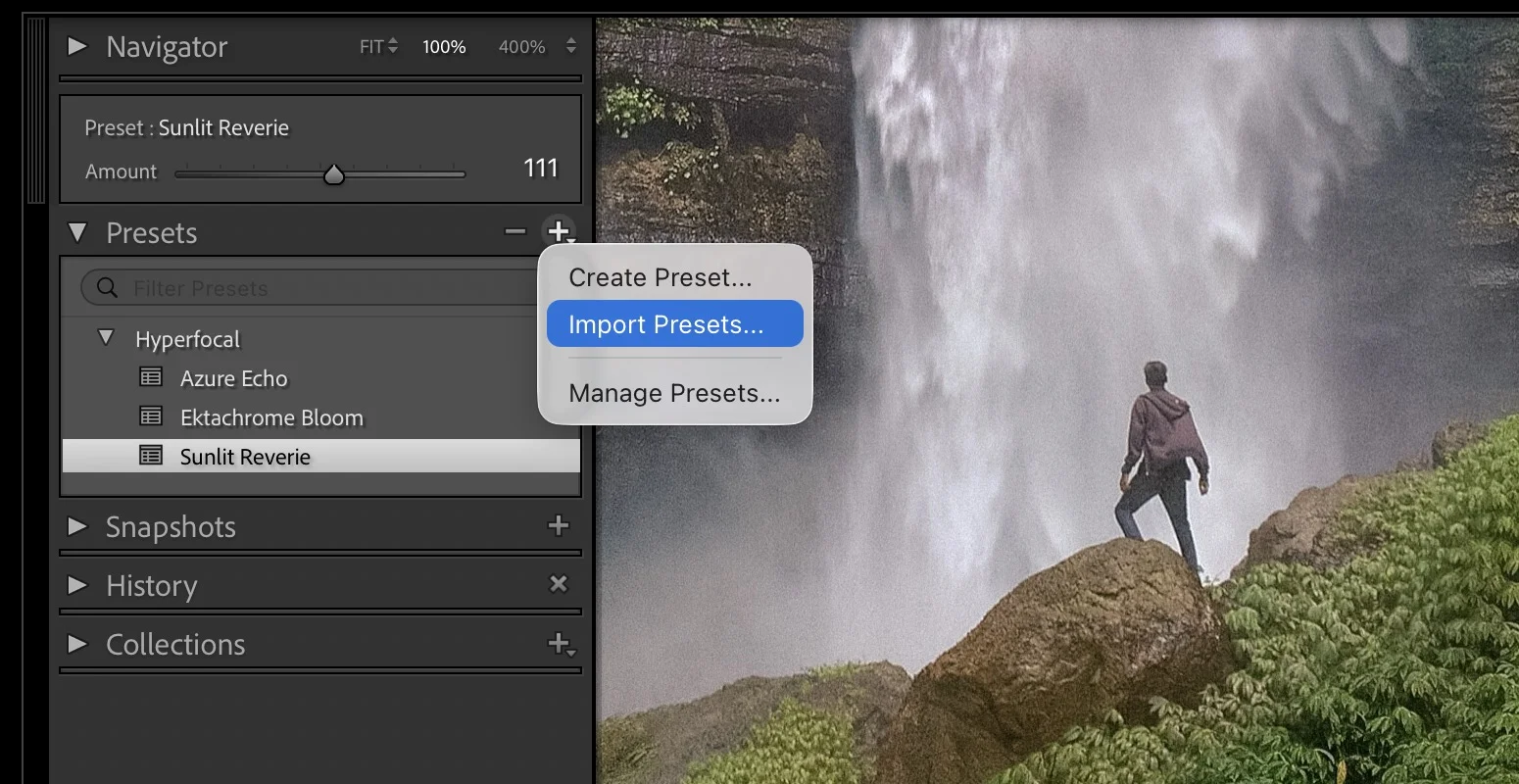
Automatic "Hyperfocal" folder
When you import presets downloaded from Hyperfocal, Lightroom automatically creates a "Hyperfocal" preset group to keep them organized. All your Hyperfocal presets will appear together in this folder, but you are free to rename and move them.
Applying Your Preset
Once imported, using your preset is simple:
- Select a photo in your Library or Develop module
- In the Develop module, expand the Presets panel
- Find your preset in the "Hyperfocal" folder
- Hover over the preset to preview the effect
- Click the preset to apply it to your image
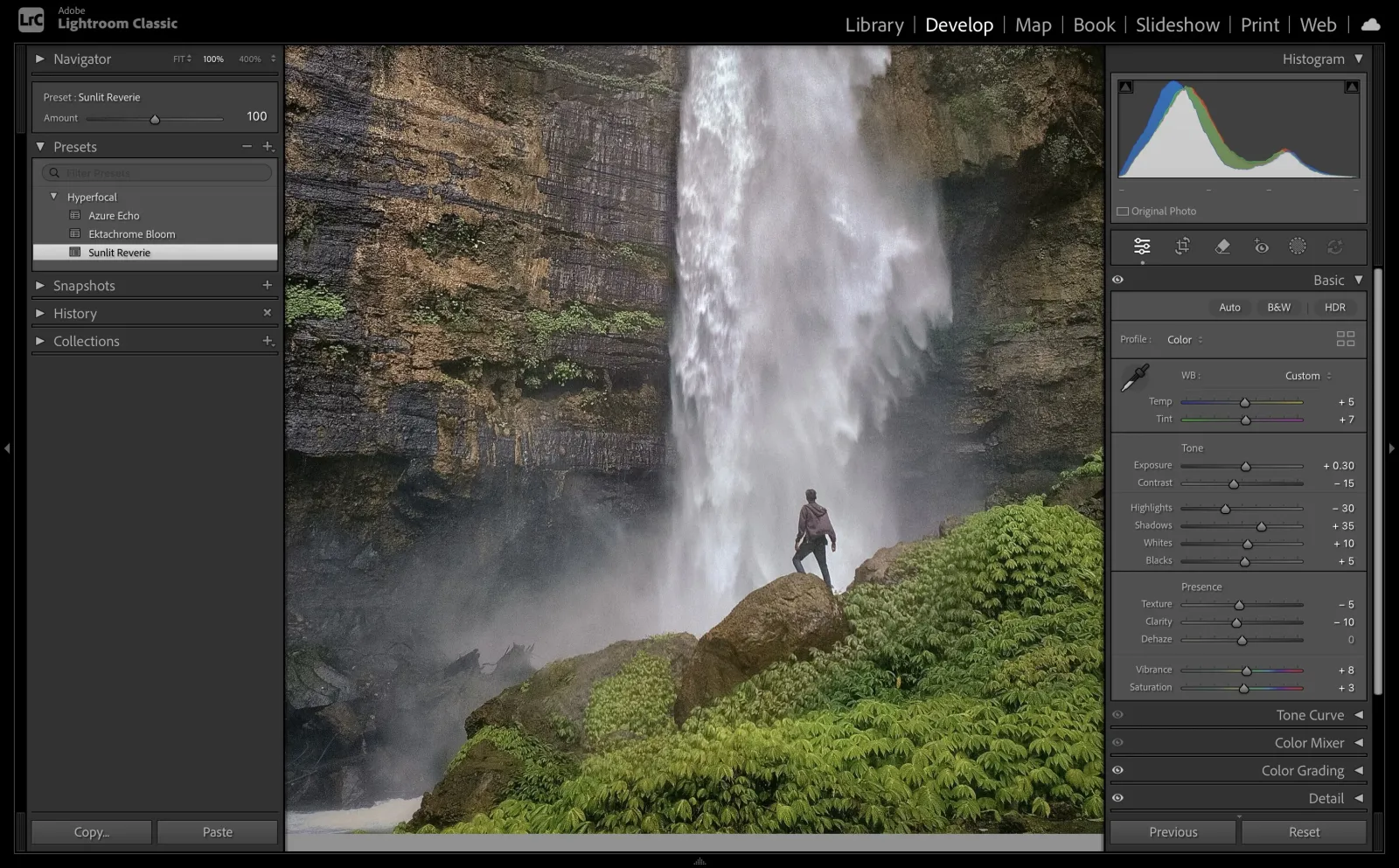
Batch Applying Presets
To apply a preset to multiple photos at once:
- In the Library module, select multiple photos (hold
Cmd/Ctrland click) - Go to the Quick Develop panel on the right
- Click "Saved Preset" dropdown
- Select your preset
Alternatively, apply a preset to one photo, then sync the settings to others using Cmd/Ctrl + Shift + S.
Troubleshooting
Preset not appearing after import?
- Try restarting Lightroom Classic
- Ensure the file isn't corrupted by re-downloading from Hyperfocal
Preset looks different than expected?
Presets are starting points that interact with your photo's existing characteristics. Different lighting, exposure, and colors in your original photo will affect how the preset looks. See our guide on Tweaking & Customizing Presets for tips on adjusting presets to match your specific photos.
Related Guides
- Installing in Lightroom CC: For the cloud-based version
- Installing in Photoshop ACR: For Adobe Camera Raw
- Organizing into Folders: Keep your presets organized
- Tweaking & Customizing Presets: Fine-tune for your photos