Lightroom Classic Sync Plugin
Automatically sync your presets to Lightroom Classic with our plugin.
What is the Lightroom Classic Sync Plugin?
The Hyperfocal Sync Plugin allows you to automatically sync all your presets from Hyperfocal directly into Adobe Lightroom Classic. Instead of manually downloading and importing each preset, the plugin fetches them all at once and places them in your Lightroom Classic presets folder.
Benefits of using the plugin
- Sync all presets with one click
- Preserves your folder structure from Hyperfocal
- Keeps presets organized when you move them between folders
- Removes deleted presets automatically
- Available on all plans (free and paid)
Requirements
- Adobe Lightroom Classic (version 7.3 or later)
- macOS or Windows
- A Hyperfocal account (any plan)
Step 1: Download the Plugin
Download the plugin from your Settings page or click the button below:
Step 2: Extract the Plugin
- Locate the downloaded
HyperfocalSync.lrplugin.zipfile - Double-click to extract it (or right-click and select "Extract All" on Windows)
- You should see a plugin file named
HyperfocalSync.lrplugin - Move this file somewhere safe (e.g., your Documents folder) - don't delete it after installing
Keep the plugin folder
Lightroom Classic references the plugin from its current location. If you move or delete the folder after installing, the plugin will stop working.
Step 3: Install in Lightroom Classic
- Open Adobe Lightroom Classic
- Go to File → Plug-in Manager...
- Click the Add button in the bottom left
- Navigate to the folder where you have saved the
HyperfocalSync.lrpluginfile and select the plugin file - Click Select Folder (Windows) or Add Plug-in (macOS)
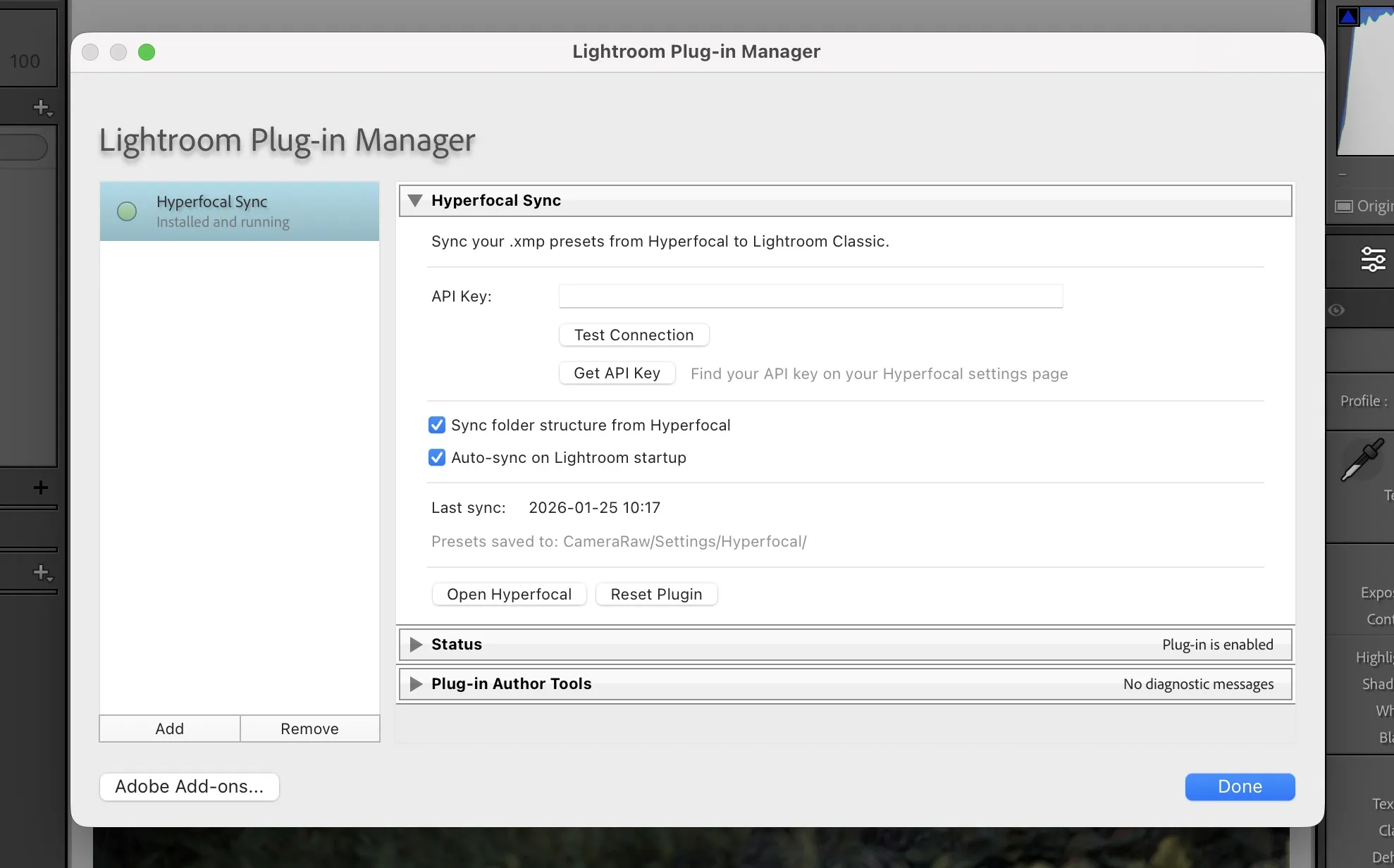
- The plugin should appear in the list with a green circle
Step 4: Get Your API Token
The plugin needs your API token to authenticate with your Hyperfocal account:
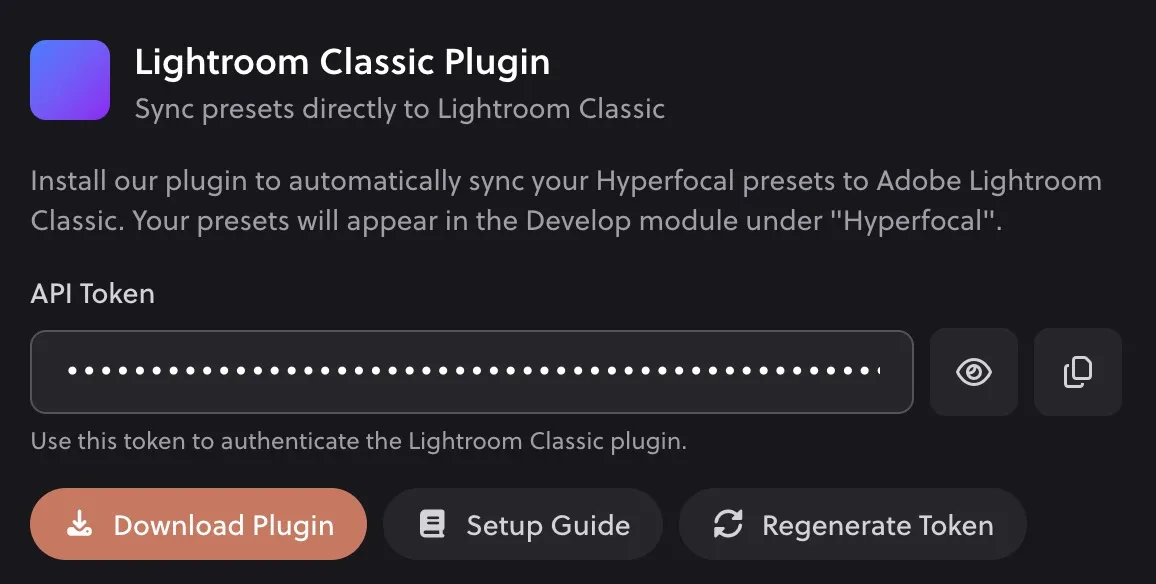
- Go to your Settings page on Hyperfocal
- Find the Lightroom Classic Plugin section
- Copy your API Token (click the copy icon)
Step 5: Configure the Plugin
- In Lightroom Classic, go to File → Plug-in Manager...
- Select Hyperfocal Sync from the list on the left
- Paste your API token in the API Key field
- Click Test Connection to verify it works
- You should see a success message with your account email
- Check Auto-sync on Lightroom startup if you want your presets to sync automatically (recommended)
- Click Done to close the Plugin Manager
Step 6: Sync Your Presets
If you enabled Auto-sync on Lightroom startup, your presets will sync automatically when Lightroom opens. Otherwise, you can sync manually:
- Go to Help → Plug-in Extras → Hyperfocal: Sync Presets
- Wait for the sync to complete (a progress bar will show)
- Restart Lightroom Classic to see your presets in the Develop module
Restart required
Lightroom Classic must be restarted after syncing for new presets to appear in the Develop module's Presets panel.
Where are my presets?
After syncing and restarting Lightroom Classic:
- Switch to the Develop module (press
D) - Look in the Presets panel on the left
- Your presets appear in groups named "Hyperfocal - [Folder Name]" (e.g., "Hyperfocal - Portraits", "Hyperfocal - Landscapes")
- Presets without a folder appear in a "Hyperfocal" group
Sync Options
In the Plugin Manager (File → Plug-in Manager...), you can configure:
- Sync folder structure from Hyperfocal: Creates separate preset groups for each of your Hyperfocal folders (e.g., "Hyperfocal - Portraits")
- Auto-sync on Lightroom startup: Automatically syncs your presets when Lightroom Classic opens. Uses smart incremental sync to only download new or updated presets, so it's fast after the first sync.
Smart sync
The plugin keeps your local presets in sync with Hyperfocal:
- New presets are downloaded automatically
- Moved presets are reorganized to match your Hyperfocal folders
- Deleted presets are removed from Lightroom
- Empty folders are cleaned up automatically
Troubleshooting
"Invalid API key" error
- Make sure you copied the entire API token (it's 64 characters long)
- If you recently regenerated your token, make sure you're using the new one
- Try copying the token again from your Settings page
"Network error" when syncing
- Check your internet connection
- Try again in a few minutes
- Make sure your firewall isn't blocking Lightroom Classic
Presets not showing after sync
- Make sure you restarted Lightroom Classic after syncing
- Check the "Hyperfocal" folder in the Presets panel
- If the folder doesn't exist, try syncing again
Plugin not appearing in Plug-in Manager
- Make sure you're selecting the
.lrpluginfolder, not the zip file - Try extracting the zip again if the folder appears corrupted
- On macOS, right-click the plugin and select "Open" if you see a security warning
Regenerating Your API Token
If you need to regenerate your API token (e.g., for security reasons):
- Go to your Settings page
- Click Regenerate Token in the Lightroom Classic Plugin section
- Confirm the action
- Copy the new token and update it in Lightroom Classic's Plugin Manager (File → Plug-in Manager...)
Token regeneration
Regenerating your token will immediately invalidate the old one. Any Lightroom Classic installations using the old token will need to be updated.
Related Guides
- Installing in Lightroom Classic: Manual preset import
- Organizing into Folders: Keep your presets organized
- Tweaking & Customizing Presets: Fine-tune for your photos